
How to bind your Gate account with Google Authenticator:
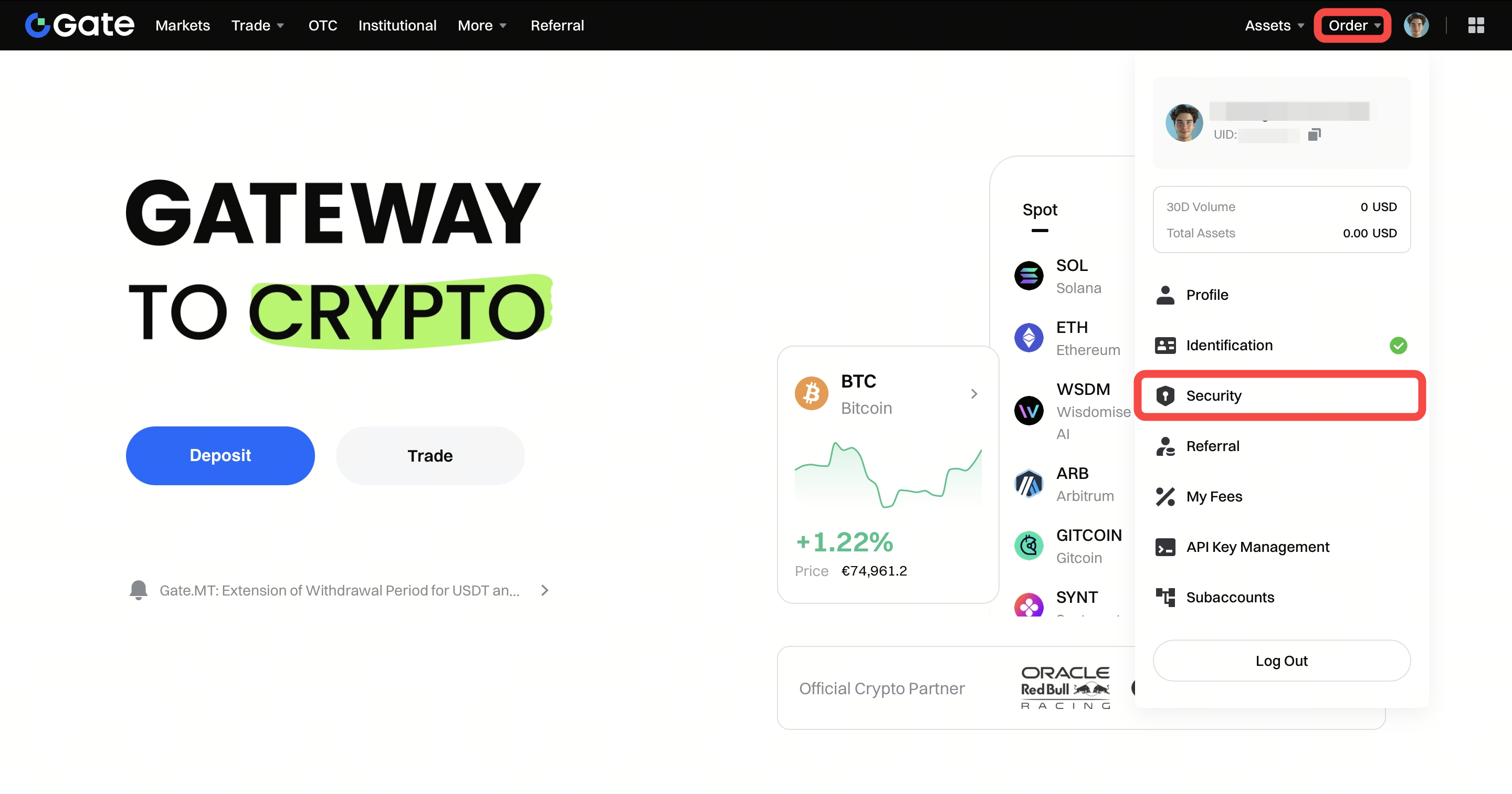
Log in to your account. Place your cursor on the top-right profile icon and go to "Security" - "Google Authenticator (TOTP) " - "Immediate binding".
How to disable Google Authenticator:
There are two scenarios where you may want to disable Authenticator:
- 1.When you have no problem receiving Google Authenticator code, you can log in to your account and go to “Security Centre” on Gate website or app to disable Google Authenticator.
- 2.In cases where you lose your phone or you uninstalled Google Authenticator so you cannot receive Google Authenticator codes, you will need to provide your Gate username (or ID), email address, your legal name, the city you are registered at, names of the currencies that you trade, a photo of you holding your ID and a piece of paper with your Gate
username (the paper note must also include a short description of the problem you have, the phone number linked to your account, and the time when this paper note is written). You may send an email containing the above-mentioned information and materials to support_eu@gate.com.
Note:
- 1.Google Authenticator is often used when logging in, withdrawing, resetting passwords and adjusting other security settings. If you sometimes cannot receive verification codes via SMS, it is recommended that you use Google Authenticator.
- 2.Please do not delete the accounts in Google Authenticator to avoid unnecessary trouble when you are operating in those accounts. If you have lost your phone or uninstalled Google Authenticator, please contact admin at support_eu@gate.com.
- 3.If you get notified that the Google Authenticator code is incorrect, please ensure that your phone is synced to network time.
