


Step 1: Enter the margin trading page
After logging in to the Gate App, tap [Trade] - [Spot], select [Margin], and enter the margin trading page. The detailed margin trading user guide is as follows:
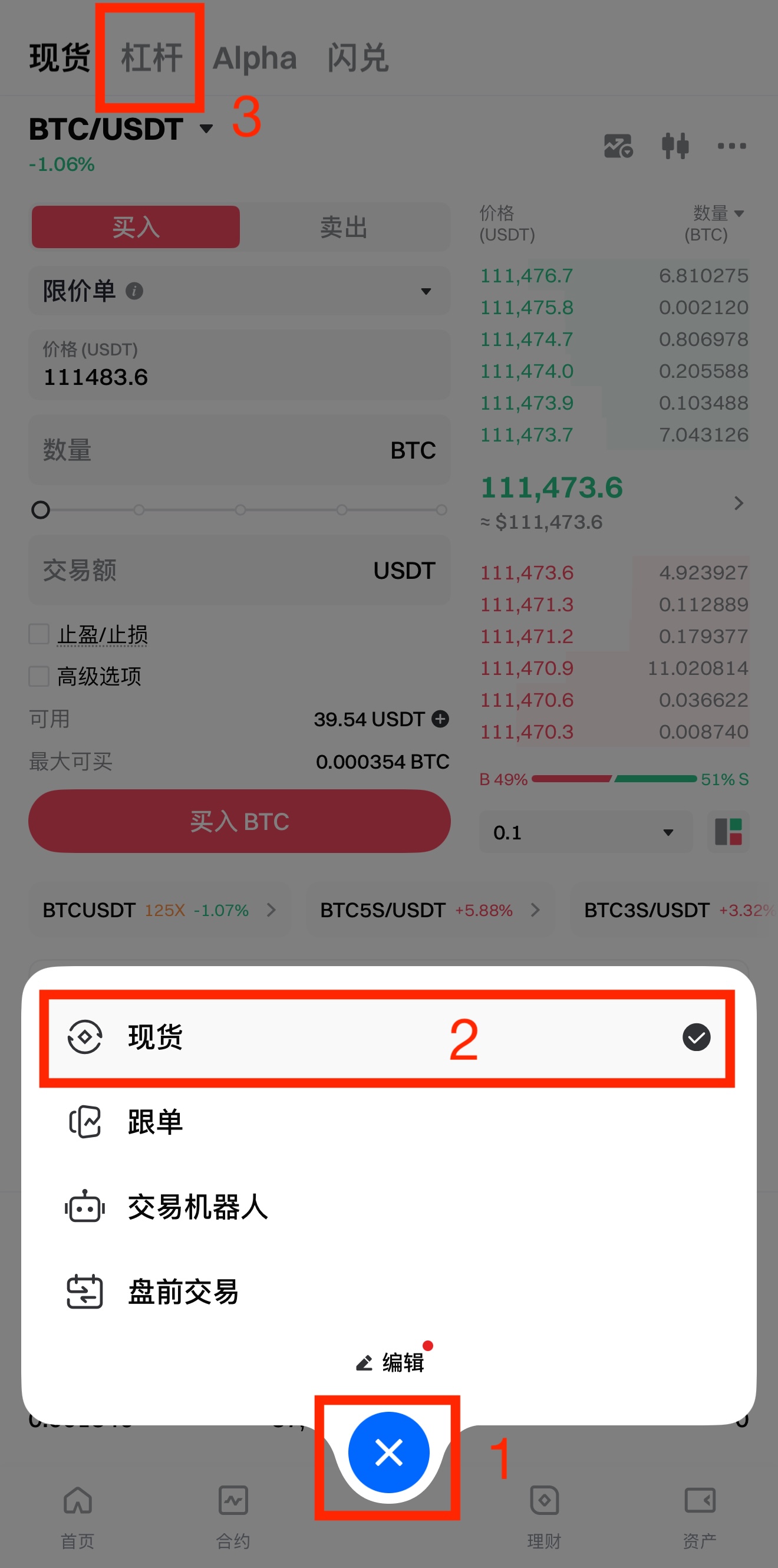
Step 2: Select the coin you want to trade
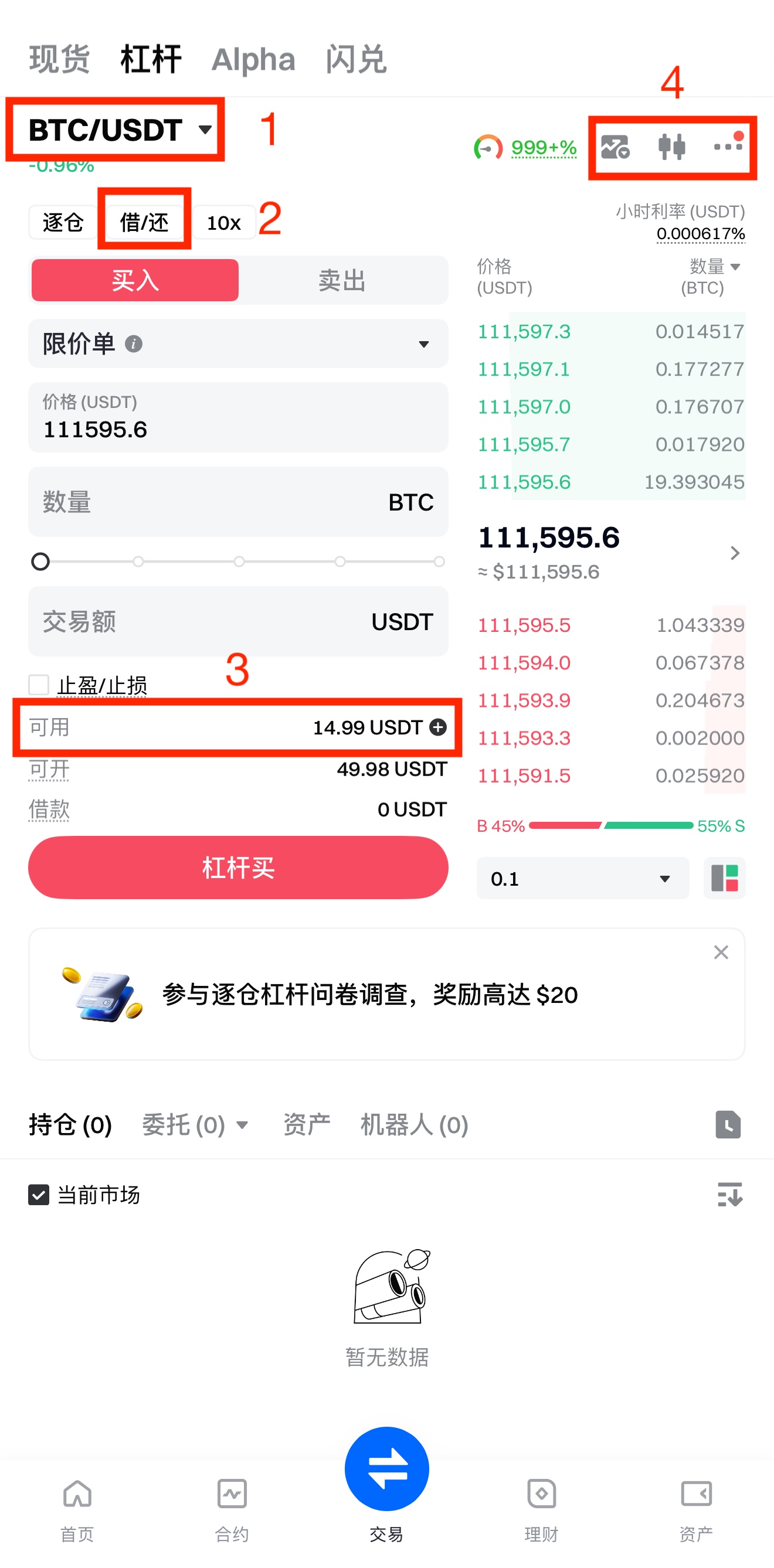
① Select the trading pair you want to trade, and the available leverage for the pair will be displayed.
② Tap [B/R] to manually borrow or repay funds.
③ Tap here to transfer funds.
④ From left to right: the candlestick chart of the selected trading pair, the market data analysis details of the selected trading pair, and the function settings.
Step 3: Transfer funds
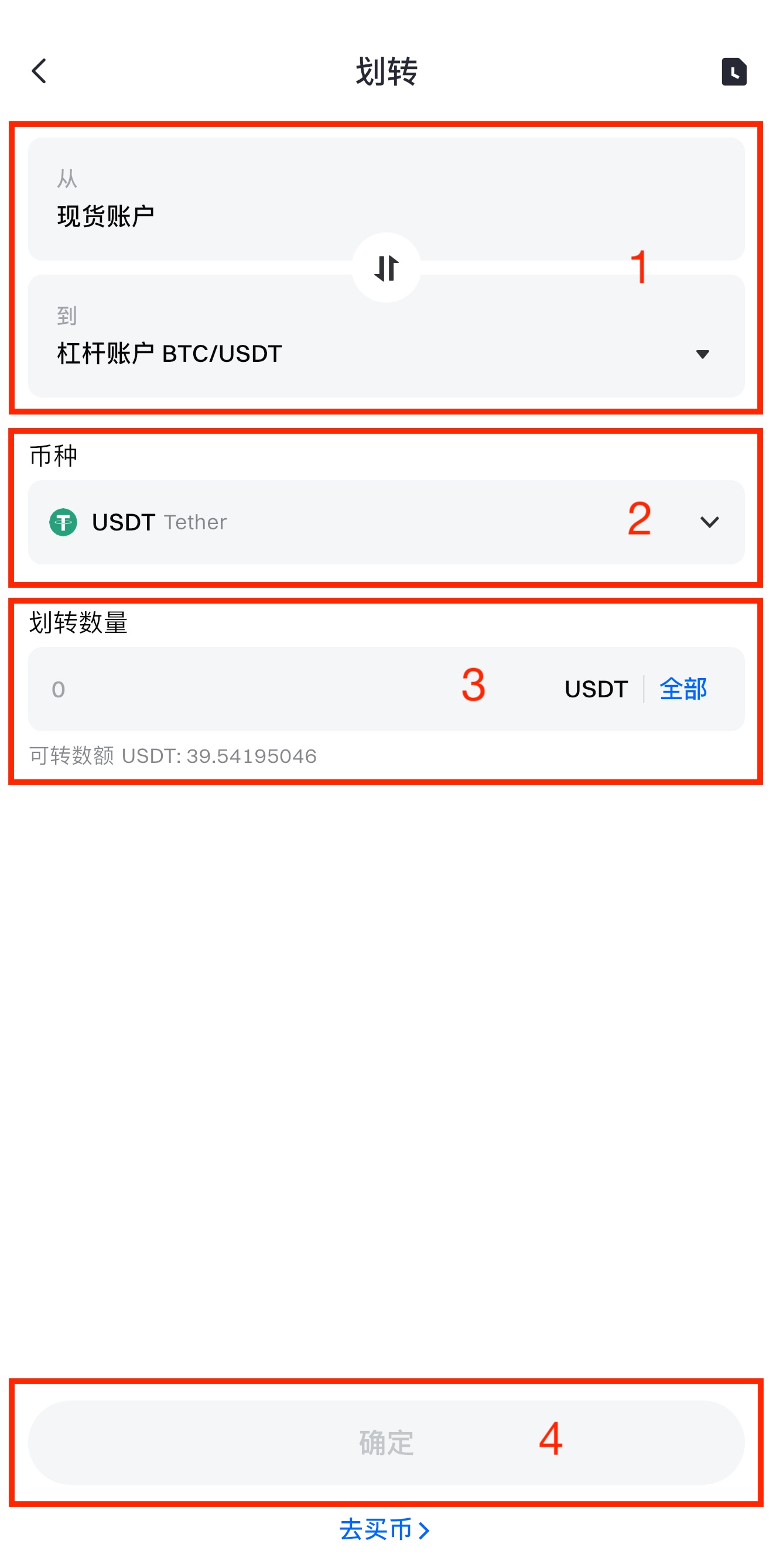
You need to transfer funds before conducting margin trading. The steps are as follows:
① Select the transfer direction: from [Spot Account] to [Margin Account], or vice versa.
② Select the [Coin] you want to transfer.
③ Enter the [Amount] you want to transfer.
④ Tap [Confirm].
Step 4: Borrow funds
After the funds transfer, you can borrow coins based on your trading strategies. You can tap [B/R] to manually borrow funds or place an order with the system auto-borrowing funds for you.
-
Auto Borrow:
-
Auto Borrow: When you are placing an order, if the available balance in the margin account is smaller than the order amount, the system will auto-borrow funds for you for trading. Interest starts to accrue once the borrowing is successful.
-
Auto Repay: After the order is completed (either fully filled or partially filled with the remainder canceled), the system will repay your loan with the coins you receive, following the principle of interest priority, then chronological priority.
-
Steps of borrowing coins manually:
Take the BTC/USDT trading pair as an example. If you are bullish on BTC, you can borrow USDT, or you can borrow BTC if you are bearish on its future prospects. ① Confirm the trading pair you want to borrow funds for.
② Select the coin you want to borrow (e.g., BTC or USDT).
③ Enter the amount you want to borrow and confirm the order.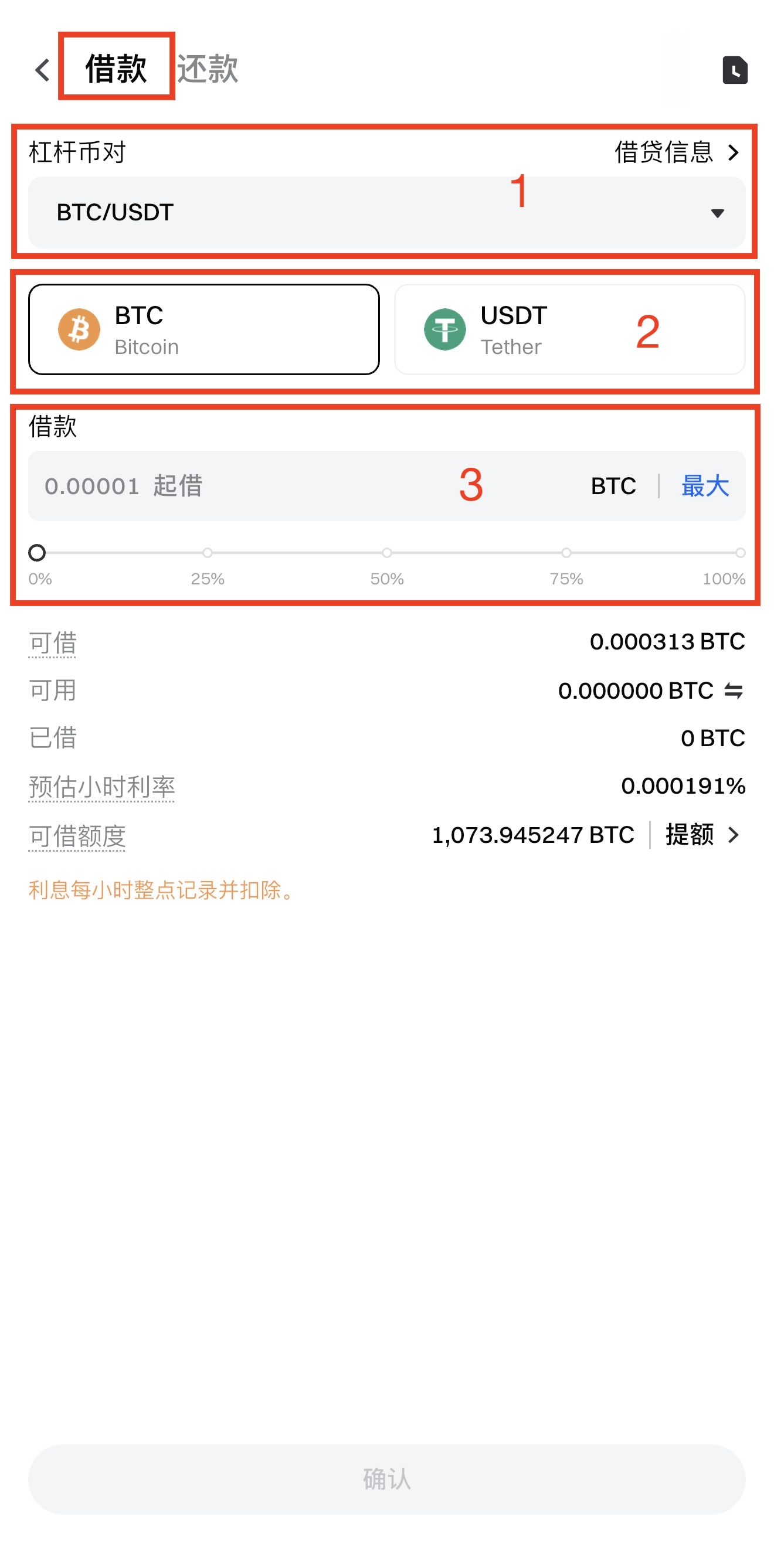
Step 5: Place an order
-
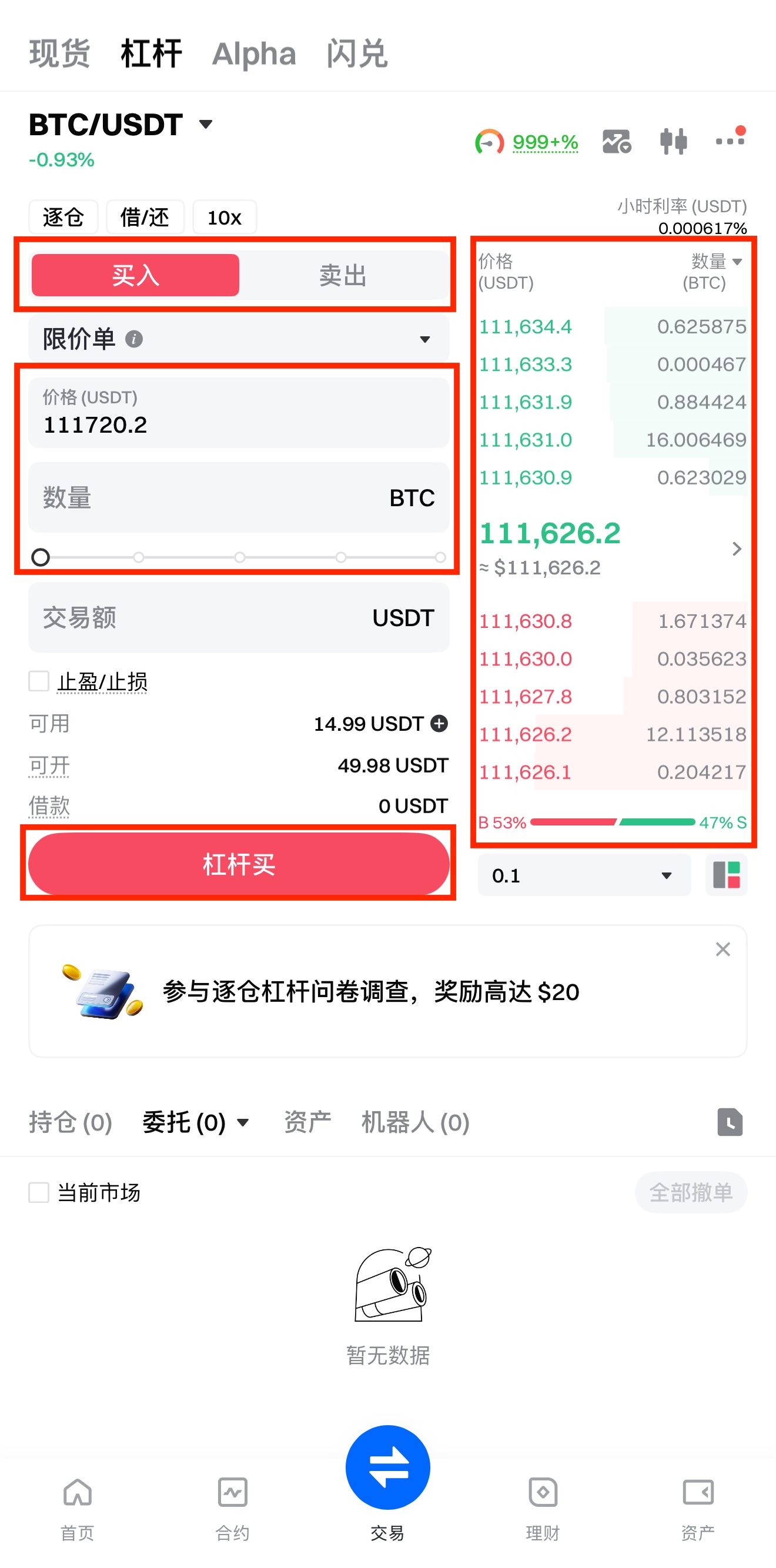
Select [Buy/Sell], set the [Price] and [Amount], or tap the order book on the right to quickly set a price. Tap [Margin Buy/Margin Sell].
-
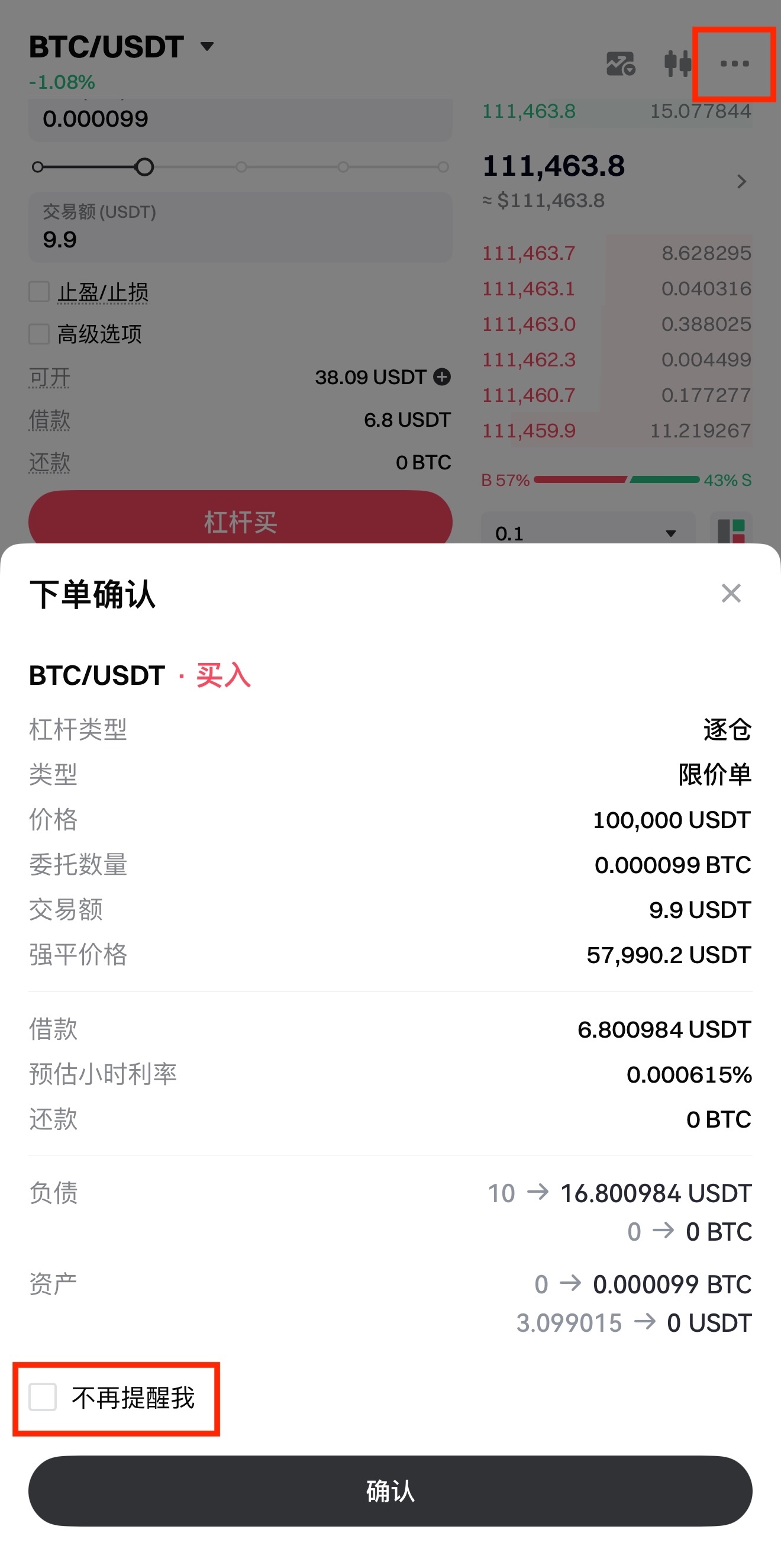
After tapping [Margin Buy/Margin Sell], you need to confirm the order. If you check the box to skip the order confirmation step, future orders in isolated margin trading will no longer go through order confirmation. If you want to enable this function later, you can tap [...] - [Trading Settings] - [Order Confirmation] to set it.
-
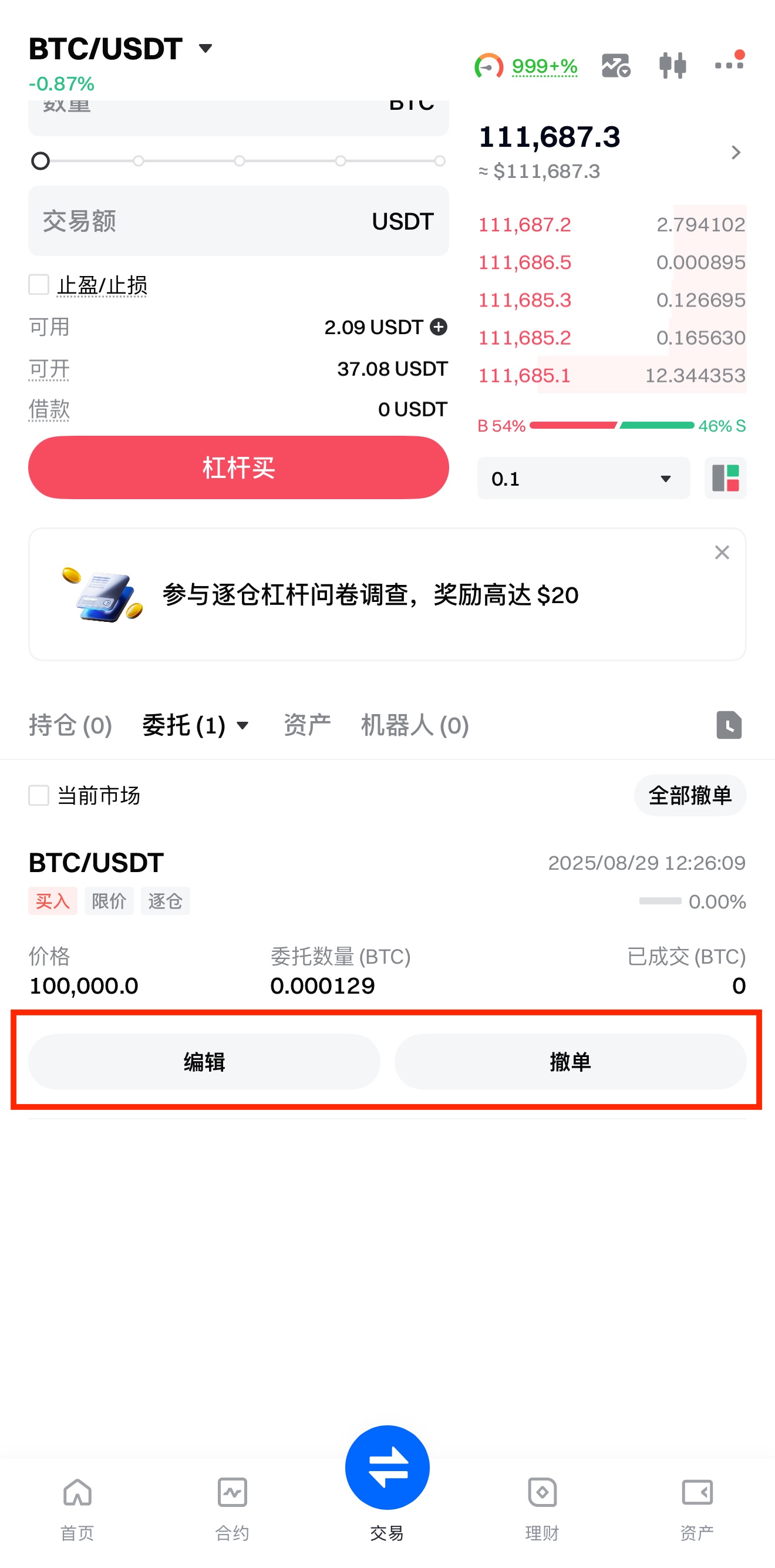
After the order is placed successfully, you can check the open order details in [Orders]. If you want to cancel the order, tap the [Cancel] button.
Step 6: Close Position/Repay
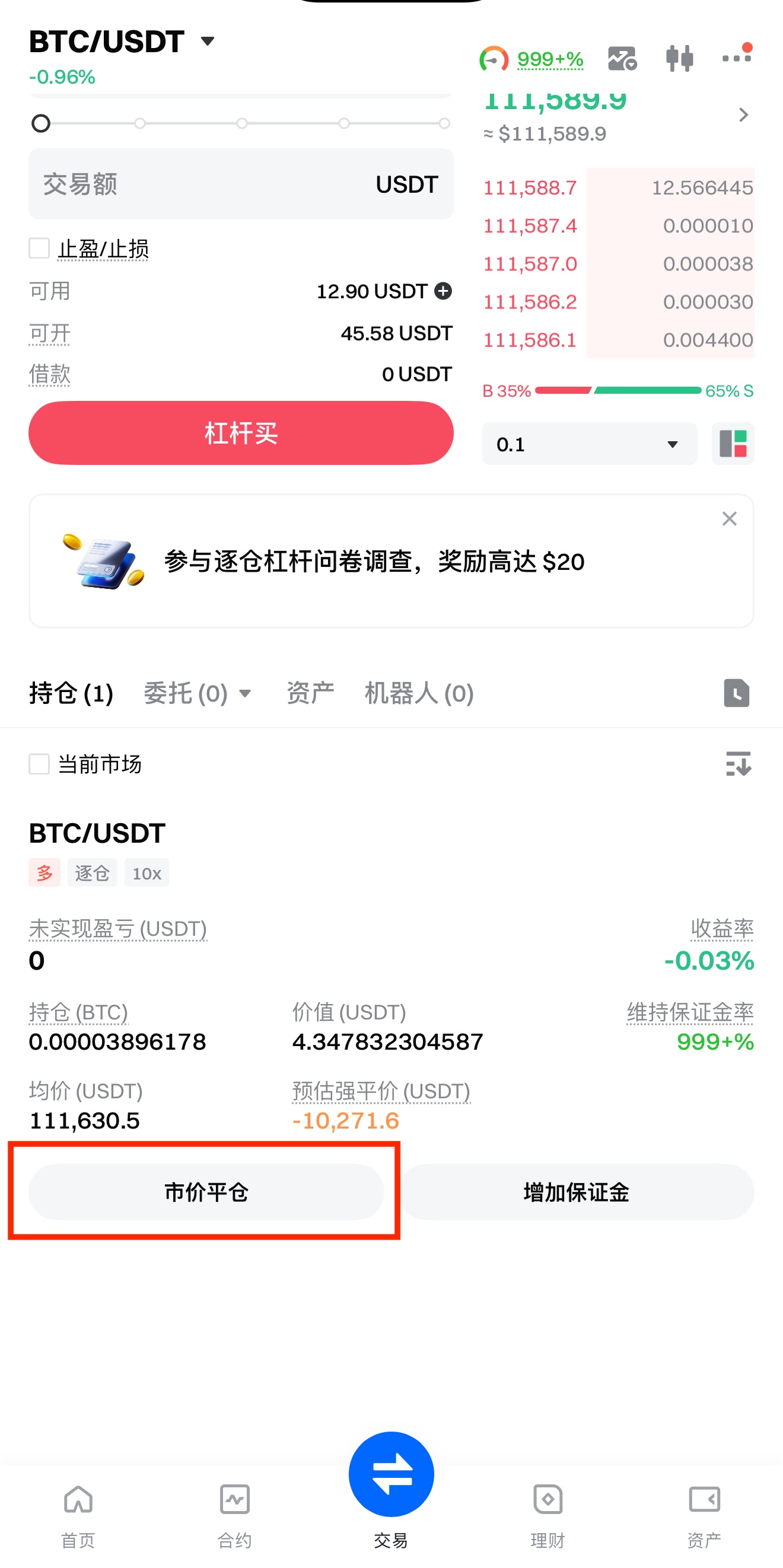
After the trade is completed, if you want to end the margin trading, tap [Close by Market] to close the position (with auto-repayment enabled). For long positions, you need to sell to close the position; for short positions, you need to buy to close the position.
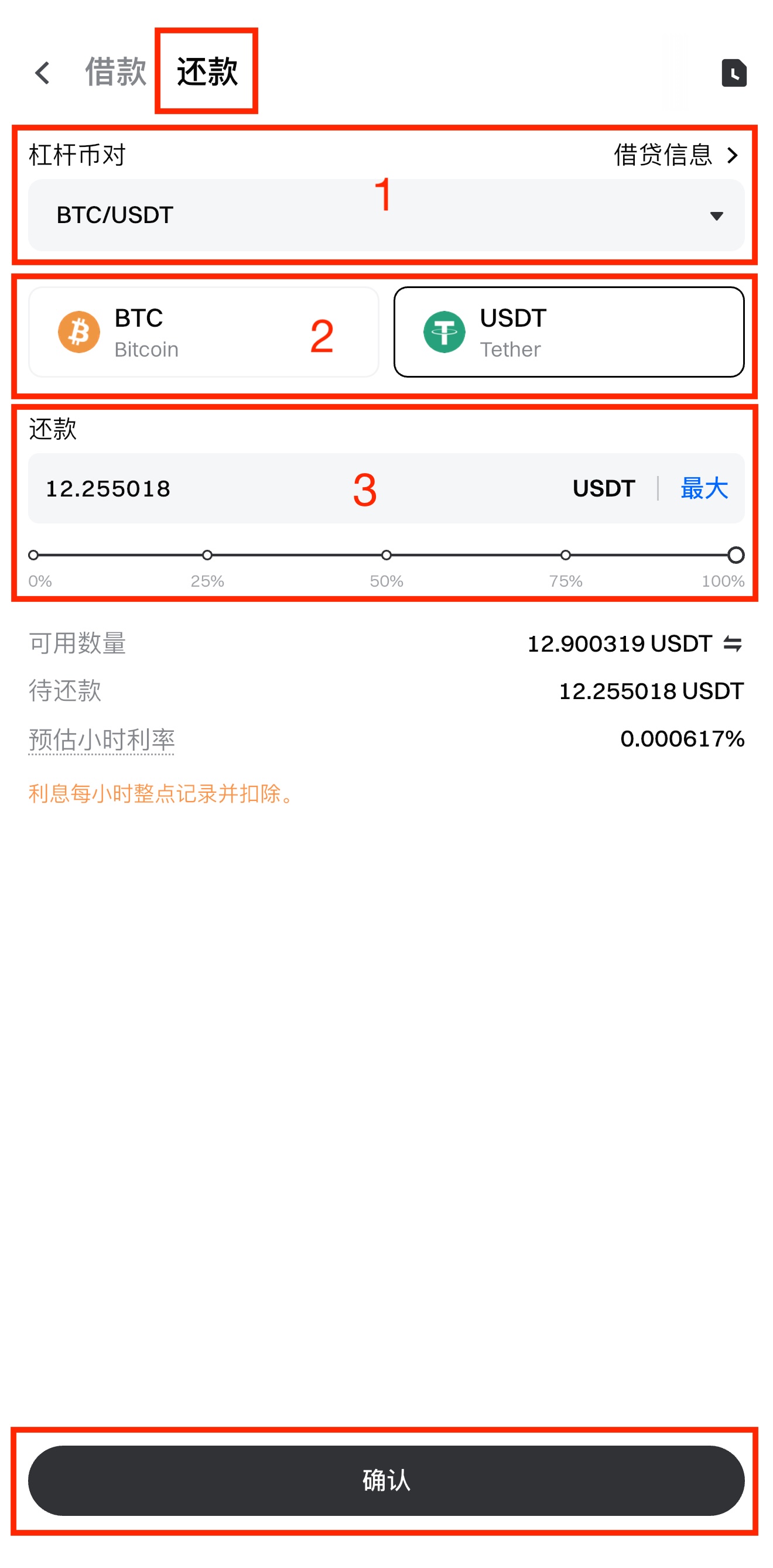
You can also repay loans manually. The steps are as follows:
① Select the [Margin Pairs] you want to repay.
② Select the coin you want to repay (e.g., BTC or USDT).
③ Enter the amount you want to repay, and you can repay loans fully or partially. Tap [Confirm].
Gate reserves the final right to interpret the product.
Disclaimer
The content provided herein is for reference and educational purposes only and does not constitute any financial, investment, trading, or legal advice, nor does it constitute an offer or solicitation to buy or sell any digital assets. Gate makes no express or implied representations or warranties regarding the accuracy, completeness, or timeliness of the information contained herein. Product features, interfaces, rules, and fee structures may be updated or adjusted at any time. Please refer to the latest announcements and the actual information displayed on the Gate platform for the most accurate details.
Digital asset investments involve significant risk, and prices may fluctuate substantially. You may lose the entire amount of your investment. Please make decisions cautiously based on your own financial situation and risk tolerance after fully understanding the associated risks. If necessary, you are advised to consult an independent professional financial or legal advisor.
For more information about potential risks, please refer to Gate's Risk Disclosure and User Agreement.
