


Applicable Scope
This guide applies to Gate App
Before you start: Ensure you have Gate App installed and are logged in
Estimated time: 2 m
Objective
This guide will walk you through how to customize your Gate App settings and notifications.
Steps
Step 1: Navigate to User Center
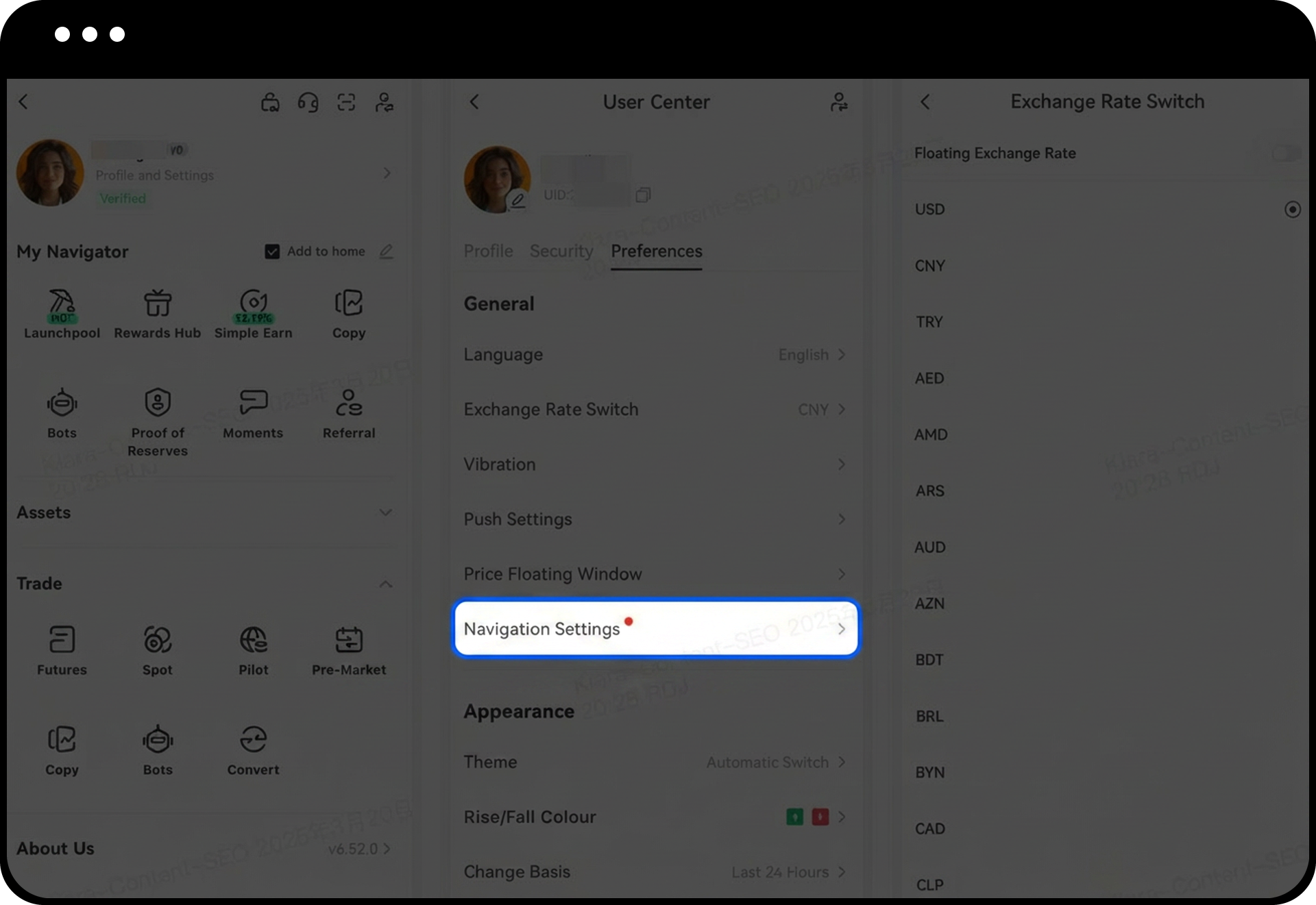
Log in to Gate App, go to the homepage, and tap the avatar icon located in the upper left corner to access the User Center.
Step 2: Enter Preferences Menu
Tap "Preferences" from the User Center menu to view all available customization options.
Step 3: Customize General Settings
Within the Preferences section, configure the following general settings:
- Language preferences
- Exchange rate currency display
- Push notification preferences
- Price alert pop-up window settings
Step 4: Modify Appearance Options
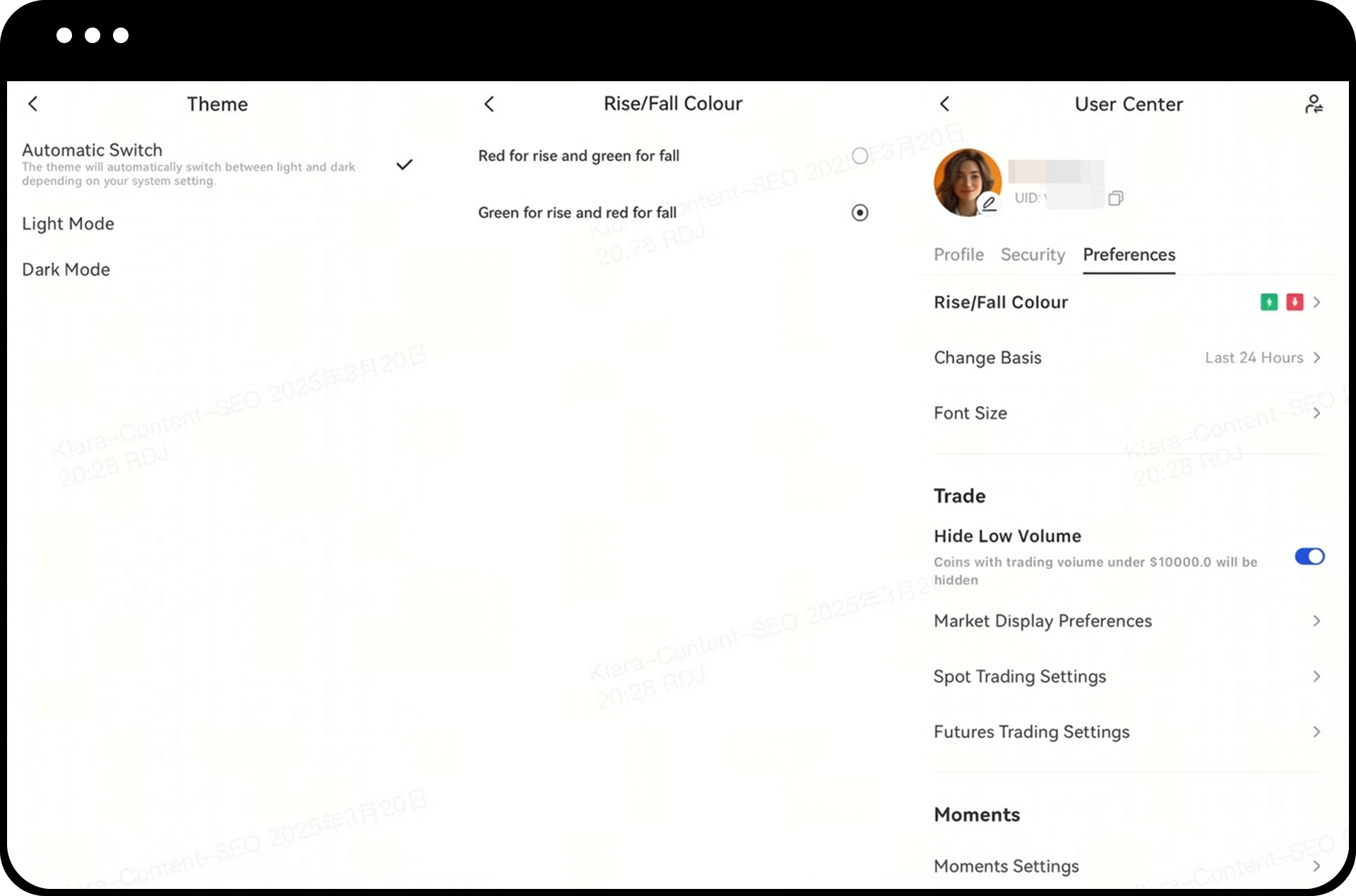
Access the appearance settings to personalize:
- App theme (light or dark mode)
- Color scheme for price increases and decreases
- Reference starting time for calculating price fluctuations
- Display font size
Notes
- All customization changes are applied immediately upon confirmation.
- Gate reserves the right to update product features, interfaces, and available settings at any time.
- Digital asset trading carries significant risks and prices may experience substantial volatility.
- The information provided is for educational purposes only and does not constitute investment advice.
- For detailed risk information, please refer to Gate's Risk Disclosure and User Agreement.
FAQ
Q1: Are my settings synced across multiple devices?
A: Yes, your preferences are associated with your Gate account and will be synchronized when you log in on different devices using the same account.
Q2: How can I restore default settings?
A: You can manually change each setting back to its default value through the Preferences menu. Currently, there is no option to reset all settings at once.
Q3: What should I do if push notifications are not working?
A: First, verify that push notifications are enabled in the App preferences. Then check your device's system settings to ensure Gate App has permission to send notifications and that Do Not Disturb mode is disabled.
Disclaimer
The content provided herein is for reference and educational purposes only and does not constitute any financial, investment, trading, or legal advice, nor does it constitute an offer or solicitation to buy or sell any digital assets. Gate makes no express or implied representations or warranties regarding the accuracy, completeness, or timeliness of the information contained herein. Product features, interfaces, rules, and fee structures may be updated or adjusted at any time. Please refer to the latest announcements and the actual information displayed on the Gate platform for the most accurate details.
Digital asset investments involve significant risk, and prices may fluctuate substantially. You may lose the entire amount of your investment. Please make decisions cautiously based on your own financial situation and risk tolerance after fully understanding the associated risks. If necessary, you are advised to consult an independent professional financial or legal advisor.
For more information about potential risks, please refer to Gate's Risk Disclosure and User Agreement.
