| Rubrica degli indirizzi attendibili
· Dopo aver configurato gli indirizzi attendibili, gli utenti non dovranno più eseguire il normale processo di verifica, che include codice di verifica SMS, codice di verifica email, codice dell'autenticatore Google/Gate e password dei fondi.
· Assicurati che gli indirizzi siano assolutamente sicuri prima di aggiungerli alla rubrica.
| Come inserire nella whitelist gli indirizzi di prelievo.
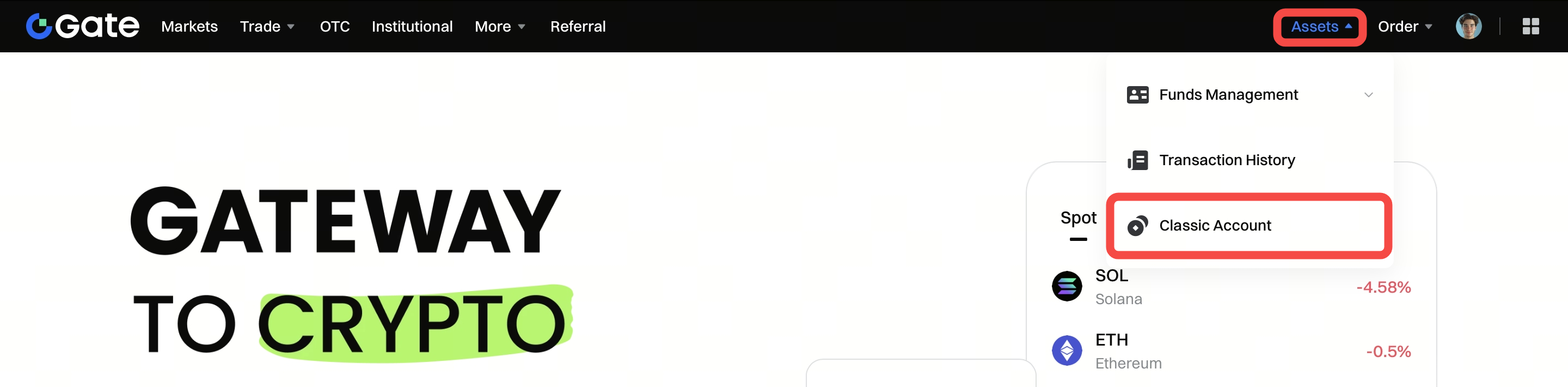
- Passaggio 1: Accedi al tuo account Gate. Clicca su "Assets" - "Classic Account" - "Spot Account".
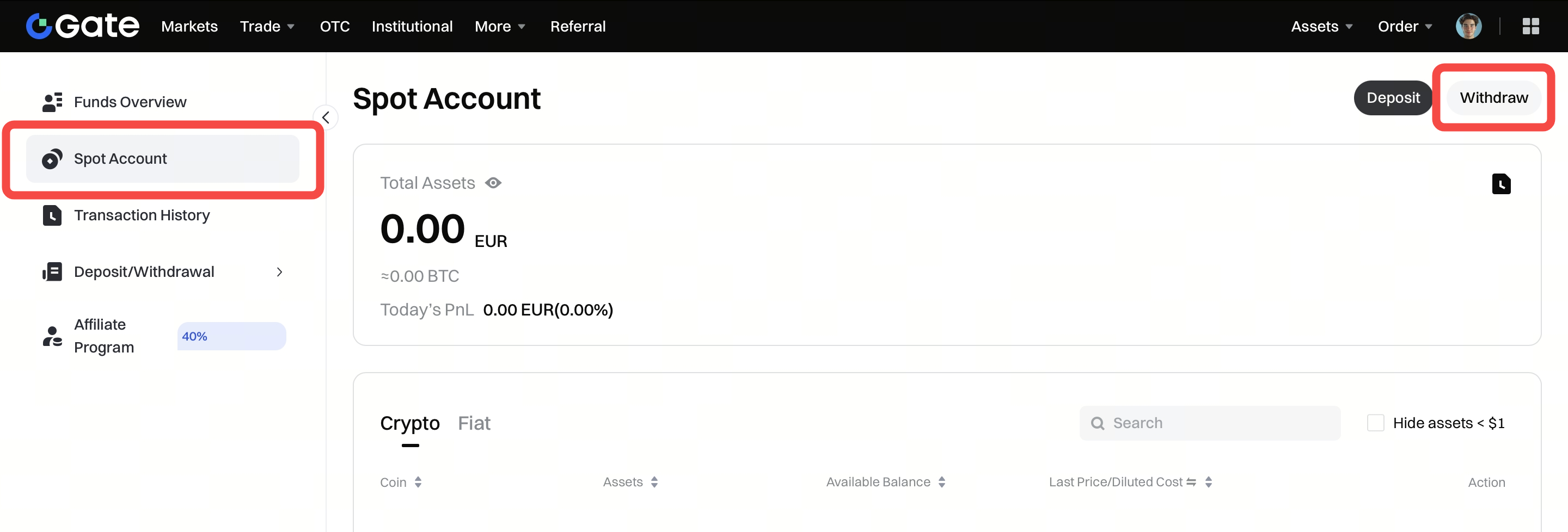
- Passaggio 2: Clicca su "Withdraw" nell'angolo in alto a destra per accedere alla pagina di prelievo, oppure puoi cercare direttamente la coin che desideri prelevare nella barra di ricerca e poi cliccare sul pulsante "Withdraw" sulla destra.
- Passaggio 3: Clicca su "Withdrawal" nel riquadro "Onchain Withdrawal".

- Passaggio 4: Clicca su "Manage Addresses" o sull'icona della rubrica qui sotto.

- Passaggio 5: Clicca su "Add new address" nella pagina “Address Book".

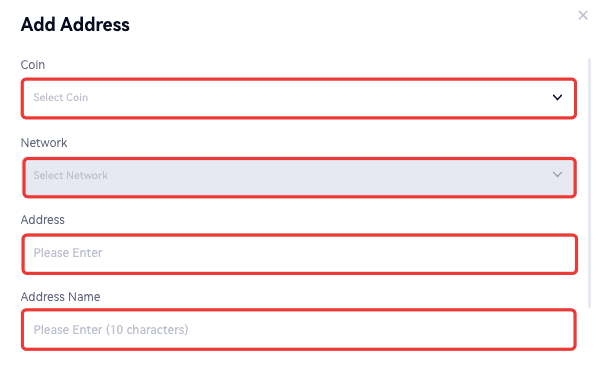
- Passaggio 6: Seleziona una coin e una rete. Inserisci l'indirizzo, il nome dell'indirizzo, la password dei fondi, il codice dell'autenticatore Google, ecc. Poi clicca su "Confirm" per completare il processo.
|Nota:
· Puoi anche selezionare la casella "Set as a trusted address. No need to verify again" per evitare di dover autenticare nuovamente l'indirizzo al prossimo utilizzo.

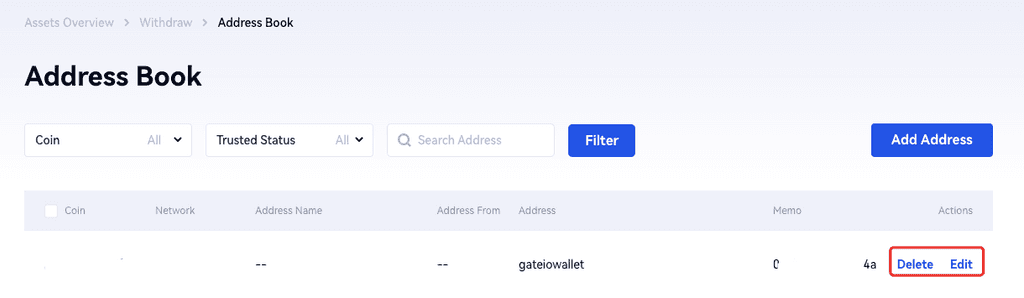
- Passaggio 7: Una volta aggiunto con successo l'indirizzo, puoi visualizzarne i dettagli in questa pagina.
- Gli indirizzi che non hai impostato come attendibili o quelli per cui hai già effettuato con successo un prelievo verranno visualizzati come nell'immagine seguente.
- Puoi cliccare su "Edit" per modificare le informazioni rilevanti e poi selezionare qui la casella "Set as a trusted address. No need to verify again".
- Puoi rimuovere un indirizzo che non ti serve più semplicemente cliccando sul pulsante "Delete".