1. Fondi non accreditati.
· Le transazioni sulla blockchain seguono tre passaggi chiave: richiesta, validazione e accredito dei fondi.
-
· Richiesta: Se lo stato del prelievo sulla piattaforma di invio indica "Completato" o "Riuscito", significa che la transazione è stata elaborata e inviata alla rete blockchain per la validazione. Tuttavia, questo non garantisce che i fondi siano già stati accreditati sulla piattaforma destinataria.
-
· Validazione: La rete blockchain richiede tempo per validare ogni transazione. I fondi verranno inviati alla piattaforma destinataria solo dopo aver raggiunto il numero necessario di conferme. Ti invitiamo ad avere pazienza durante questo processo.
-
· Accredito fondi: Solo quando la blockchain valida la transazione e viene raggiunto il numero minimo di conferme richieste, i fondi saranno accreditati all’indirizzo destinatario.
|Nota:
-
- La congestione della rete può verificarsi quando è presente un elevato numero di transazioni in elaborazione, causando ritardi e influenzando la tempestività della transazione. In tal caso, ti consigliamo di attendere con pazienza e utilizzare il TXID per monitorare lo stato della transazione.
-
- In caso di deposito, se il completamento richiede più tempo del solito o se manca la registrazione del deposito, puoi utilizzare la funzione di "auto-accelerazione" per velocizzare il processo. Dopo aver inviato la richiesta di accelerazione, attendi pazientemente 5-30 minuti per verificare se il deposito è stato accreditato.
-
- Se la transazione è stata confermata dalla rete e la funzione di auto-accelerazione è stata utilizzata, ma i fondi non sono ancora arrivati, fornisci al nostro servizio clienti il tuo UID, TXID e screenshot della transazione sulla piattaforma di invio per verificare lo stato della transazione.
2. Deposito di una coin non desiderata.
· Se hai depositato token non supportati o hai utilizzato una chain errata, puoi inviare una richiesta di recupero per ottenere il rimborso dei tuoi fondi. Attualmente, questa funzione è disponibile solo nella versione web.
· Tieni presente che la richiesta di recupero prevede una commissione di 100 USDT, quindi assicurati di avere saldo sufficiente nel tuo account spot prima di inviare la richiesta.
3. Come visualizzare le informazioni del blocco
Prendiamo come esempio una transazione ETH sulla rete ETH-ETH/ERC20:
·Due modi per accedere all’explorer della blockchain.
-
- Accedi al tuo account Gate da web. Clicca su "Wallet" - "Conto Classico" - "Conto Spot".
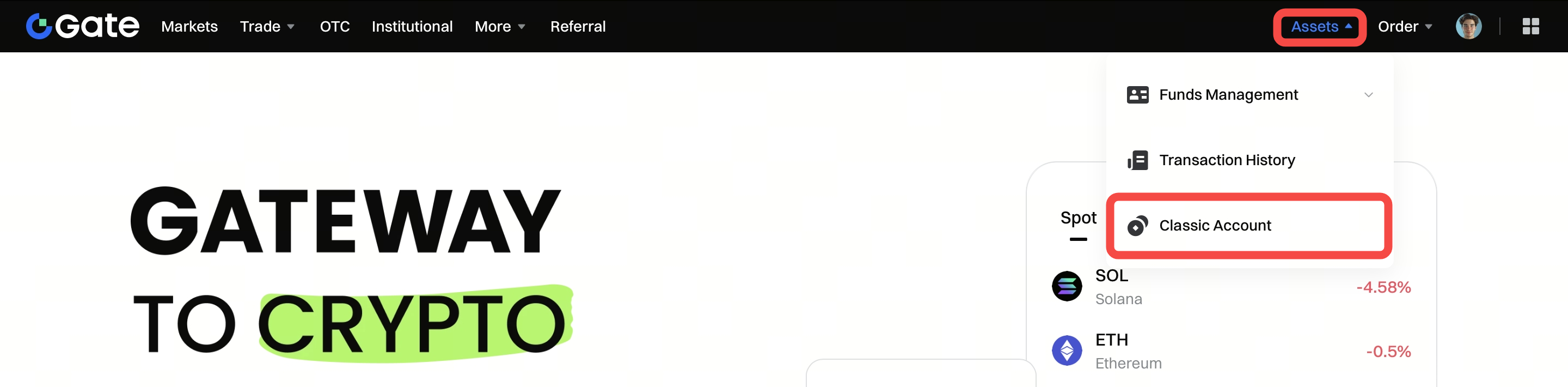
- Accedi al tuo account Gate da web. Clicca su "Wallet" - "Conto Classico" - "Conto Spot".
-
- Seleziona Deposito
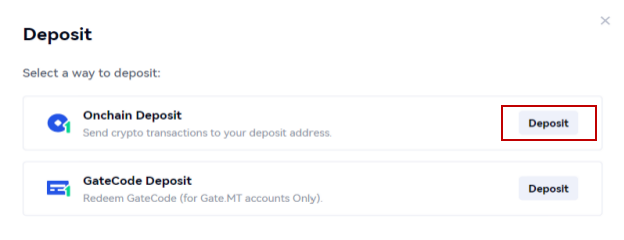
- Seleziona Deposito
-
- Cerca la coin nella pagina di deposito e clicca su "Blockchain" per entrare nella pagina dei dettagli della transazione.
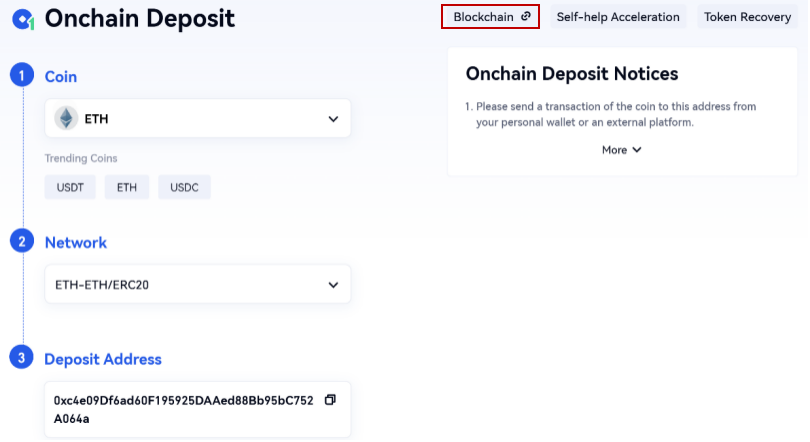
- Cerca la coin nella pagina di deposito e clicca su "Blockchain" per entrare nella pagina dei dettagli della transazione.
-
- Incolla il TXID nella barra di ricerca in alto a destra e premi invio.
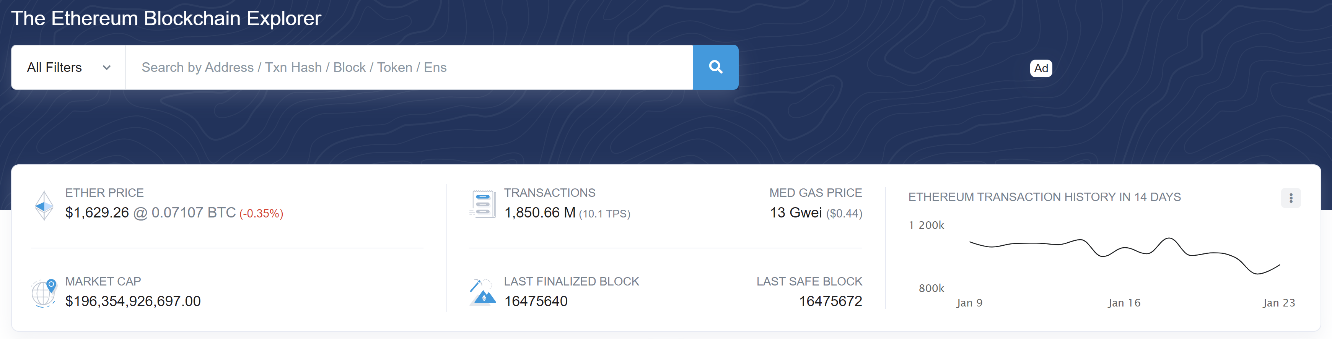
- Incolla il TXID nella barra di ricerca in alto a destra e premi invio.
-
- Puoi visualizzare le informazioni del blocco nella pagina dei dettagli della transazione. Clicca sul nome della coin ("GateChainToken" in questo esempio) per vedere ulteriori dettagli.
-
- L’indirizzo del contratto è visibile nella sezione "Profile Summary".
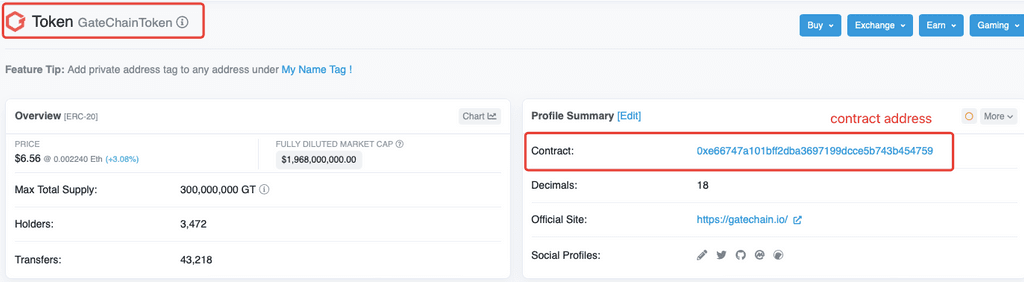
- L’indirizzo del contratto è visibile nella sezione "Profile Summary".
4. Come depositare/prelevare fondi
| Deposito fondi
-
Passaggio 1: Accedi al tuo account Gate ed entra in “Assets” - “Conto Classico” - “Conto Spot”.
-
Passaggio 2: Clicca su “Deposit” nella barra di navigazione in alto.
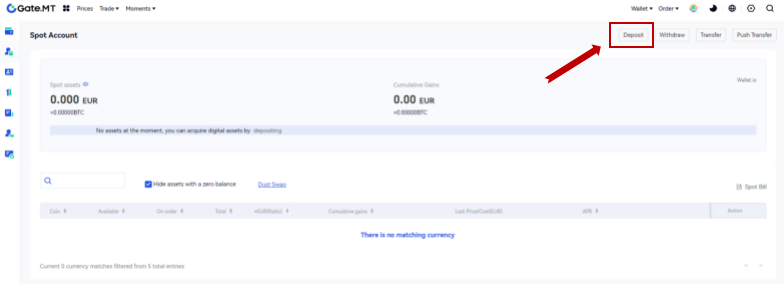
-
Passaggio 3: Sono disponibili “Onchain Deposit” e “GateCode Deposit”. Scegliamo Onchain Deposit e clicchiamo sul pulsante “Deposit”.
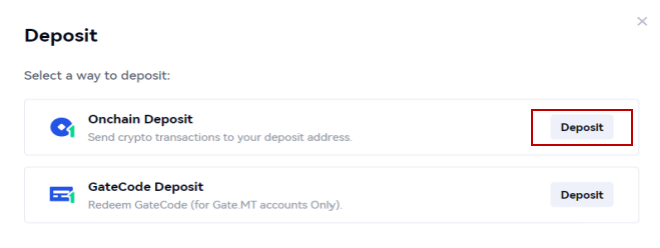
-
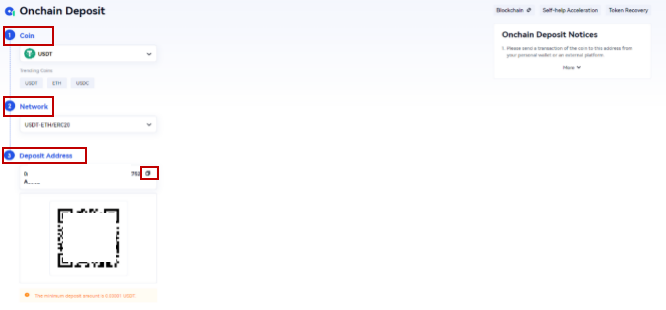
Passaggio 4: Seleziona la coin che vuoi depositare dal menu “Coin” e seleziona la blockchain specifica per la coin. Poi, copia l’indirizzo di deposito o salva il QR code.
-
Passaggio 5: Scansiona il QR code o incolla l’indirizzo di deposito sulla piattaforma da cui vuoi prelevare.
| Prelievo fondi
-
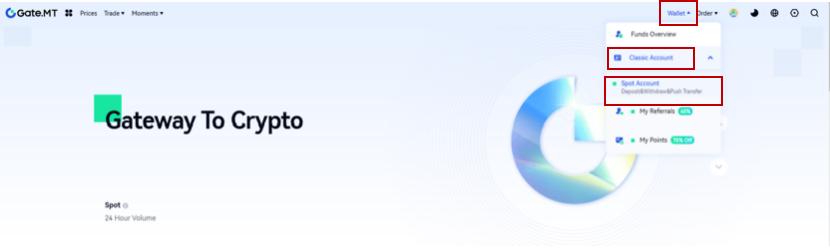
Passaggio 1: Accedi al tuo account Gate ed entra in “Assets” - “Conto Classico” - “Conto Spot”.
-
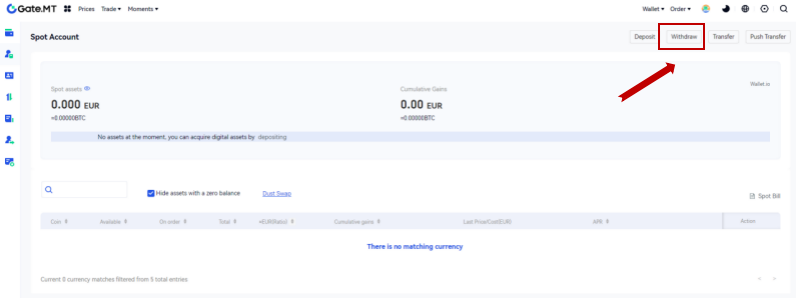
Passaggio 2: Clicca su “Withdraw” nella barra di navigazione in alto.
-
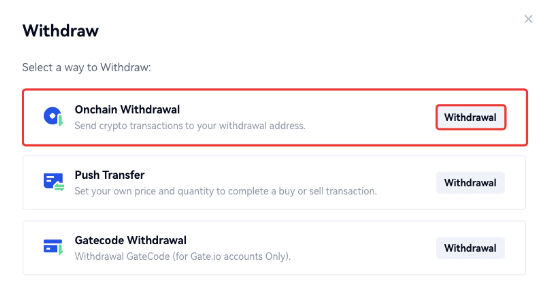
Passaggio 3: Scegli “Onchain Withdrawal” e poi clicca su “Withdrawal”.
-
Passaggio 4: Seleziona la coin che vuoi prelevare dal menu “Coin”. Poi, scegli una blockchain di prelievo per l’asset. Inserisci l’indirizzo a cui vuoi inviare i fondi e l’importo da prelevare. Quindi clicca su “Next”.
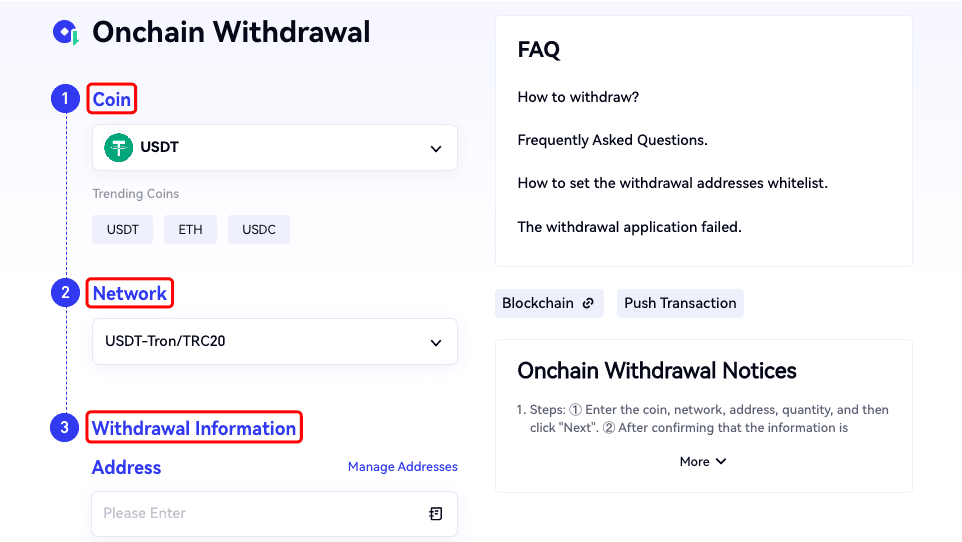
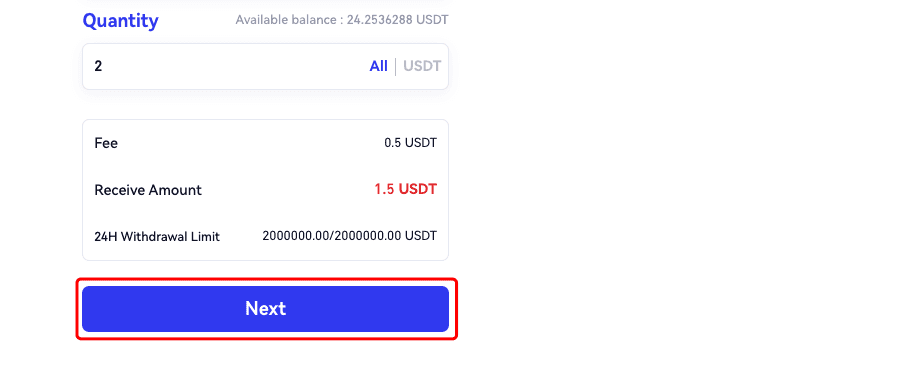
| Nota: La blockchain di prelievo deve essere la stessa di quella selezionata per il deposito, altrimenti l’asset non potrà essere accreditato né rimborsato. -
Passaggio 5: Inserisci la password dei fondi e il codice di verifica Google per confermare il prelievo.
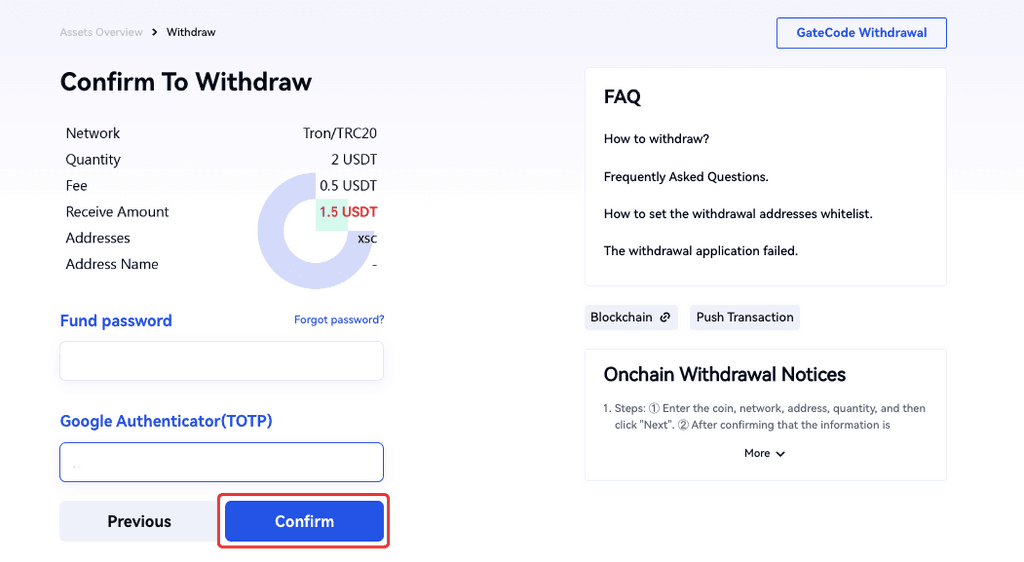
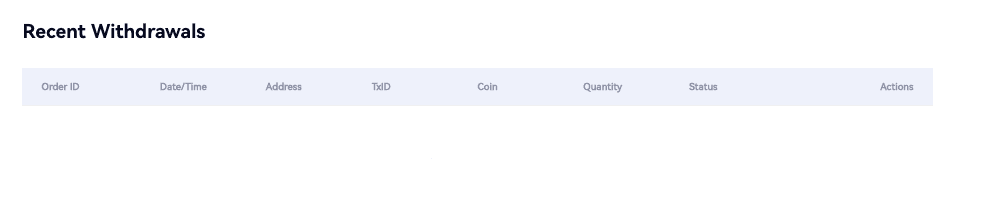
Dopo il prelievo, puoi controllare la cronologia completa dei prelievi in fondo alla pagina di prelievo.